Norton Internet Security Instructions
- Click Start and navigate to the programs list. Choose the 'Norton Internet
Security' folder. Click on the ‘Norton Internet Security’ program to run
it (or double-click on the ‘Norton Internet Security’ icon on the
desktop).
- Click on 'Live Update' to make sure you have to most up to date virus
definitions.

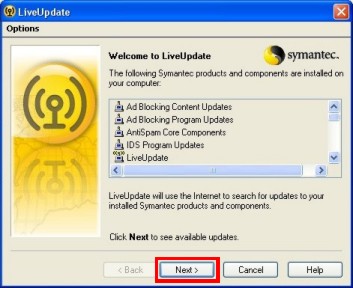
- Make sure you are connected to the internet, then click 'Next'.

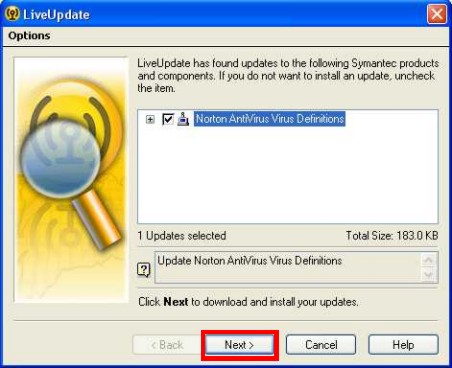
- If updates are available (either virus definitions or program updates),
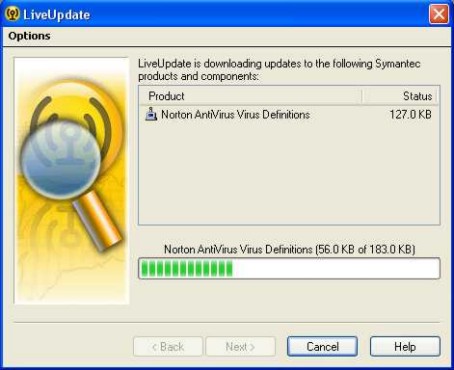
these will be listed. Click 'Next' and the file(s) will be automatically
downloaded and installed.
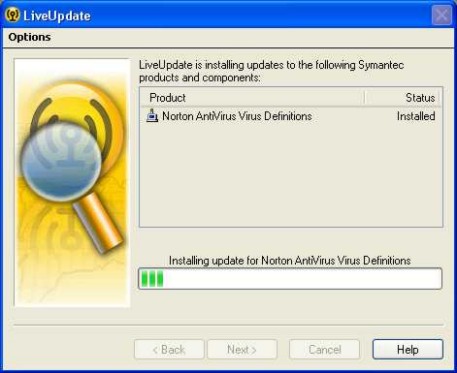
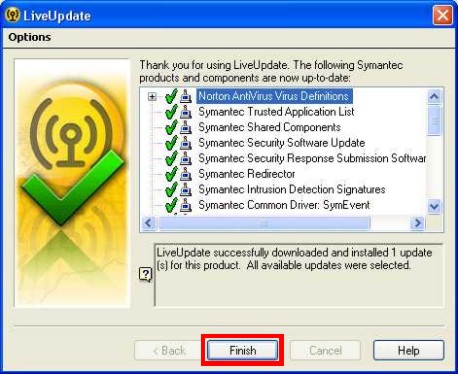
- Run ‘Live Update’ (restarting the computer if instructed to) until you
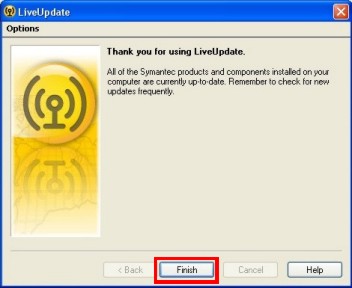
get the message that all Symantec products and components are up to date.
Click 'Finish'. Your virus definitions are now up to date.
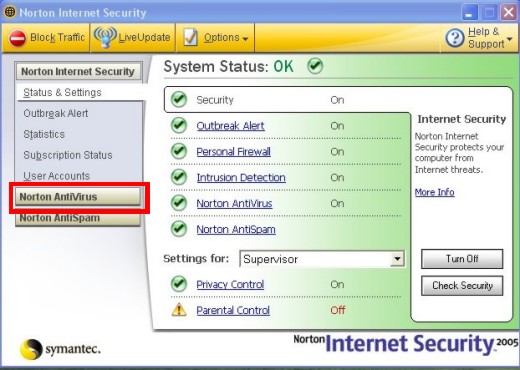
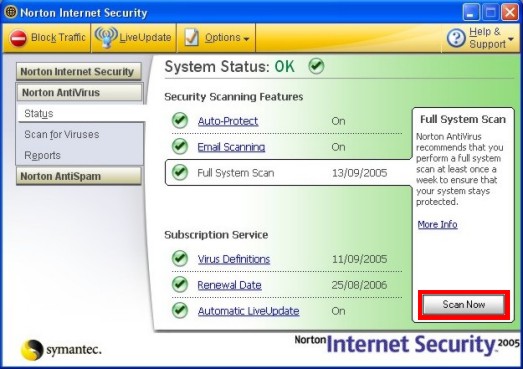
- Click 'Norton Antivirus'.
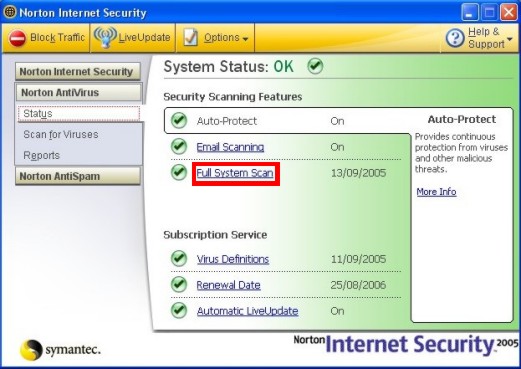
- Click ‘Full System Scan'.
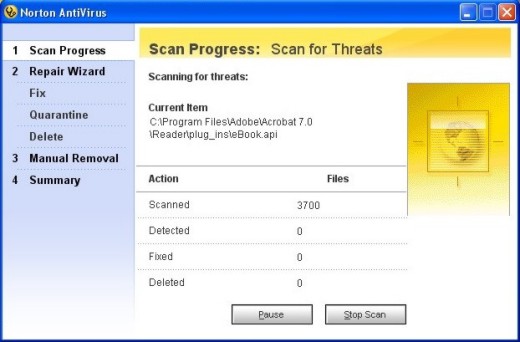
- Click ‘Scan Now’. This starts a scan of your computer. The computer
will be busy with this scan for usually about 30 minutes (depending on
processor speed, the number of hard drives and the number of files on your
computer – it took my computer 1 hour and 16 minutes to scan two hard
drives and 430,000 files), and it is best not to use the computer while the
scan is progressing.
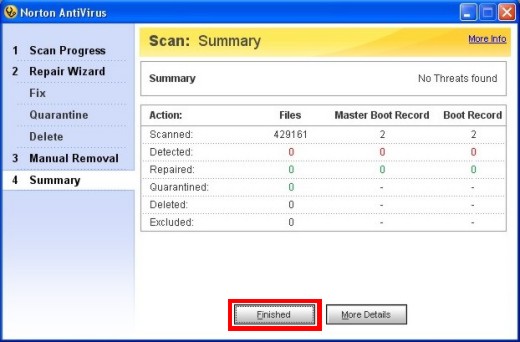
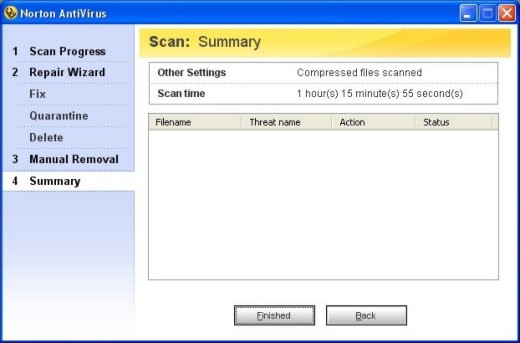
- Once the scan is complete, and no threats have been found, click ‘Finished’
- If the number of ‘Repaired’, ‘Quarantined’ and ‘Deleted’ is
less than the number of ‘Detected’ threats (or if you are curious to
know just what Norton found), click on ‘More Details’.
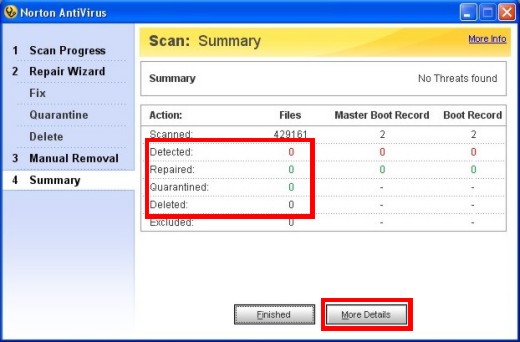
- This provides you with a list of threats found (if any) and the action taken. If
Norton finds a threat that it is unable to ‘Fix’, ‘Quarantine’ or
‘Delete’, you can try to manually delete the file. If you are
unsure what to do at this point, make a note of the information provided by
Norton and call in an expert.
- You are done. Your computer is now virus free. Run a scan every week or so
to keep your computer clean.
More information about the different features of Norton Internet Security is
available on the Symantec website (http://www.symantec.com/techsupp/), as are
manuals (http://www.symantec.com/techsupp/files/nis/index.html).
Back